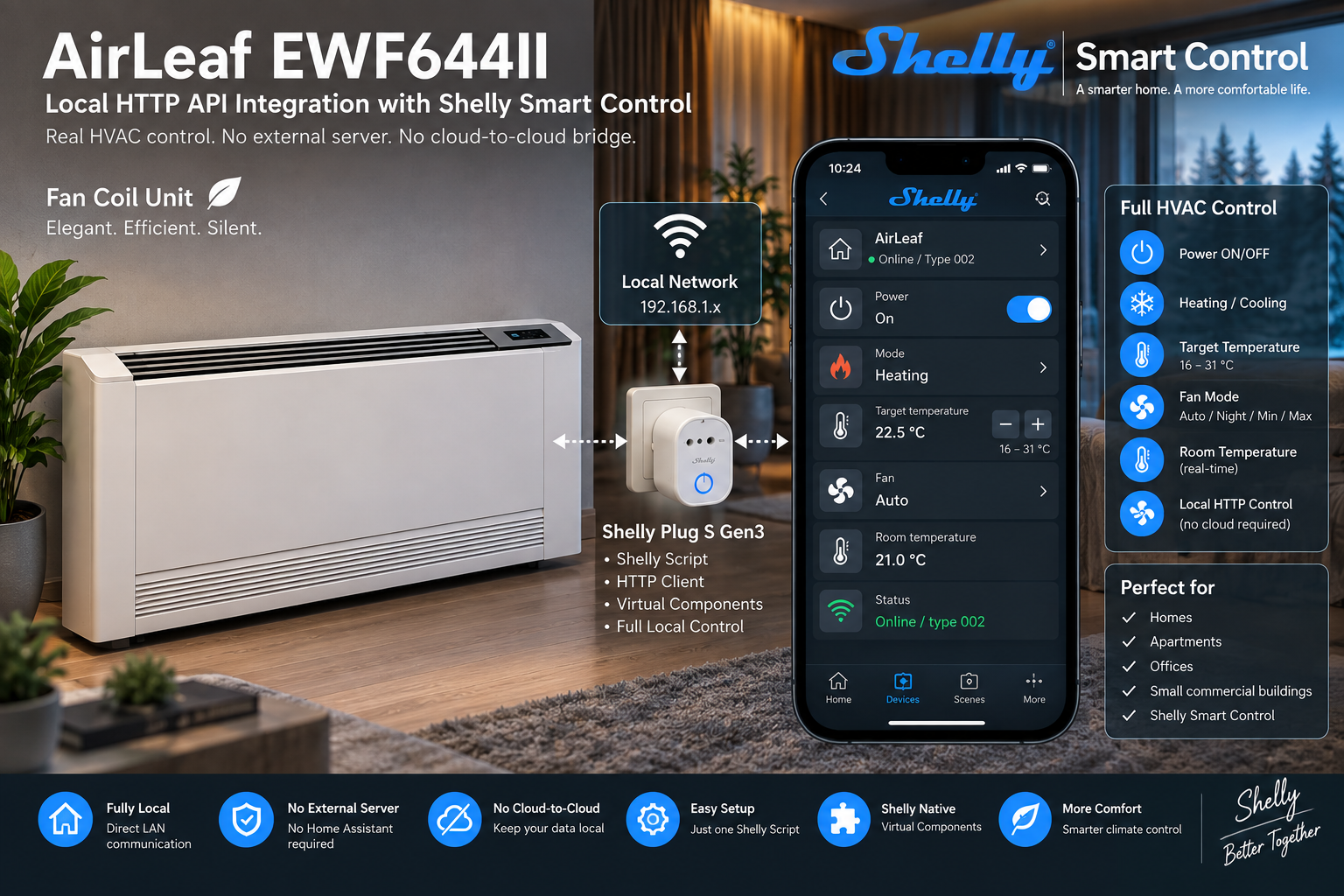
Integrate INNOVA AirLeaf EWF644II directly with Shelly Smart Control through its local HTTP API. This guide covers API communication, Virtual Components, heating and cooling control, fan modes, temperature control, bidirectional synchronization, fault handling, and deployment on Shelly Gen3.
This guide explains how to connect a compatible INNOVA AirLeaf controller to a Shelly Gen3 device, expose the main HVAC controls and operating values as Shelly Virtual Components, and control the fan coil directly from Shelly Smart Control. The integration is fully local between the Shelly device and the INNOVA controller. No Home Assistant instance, external automation server, MQTT broker, cloud-to-cloud bridge, or additional protocol gateway is required for the control loop.
Overview
The INNOVA AirLeaf EWF644II fan-coil unit, equipped with its integrated on-board SMART TOUCH control and Wi-Fi interface, provides a local HTTP interface that can be accessed directly from the local network. A Shelly Gen3 device can use Shelly Script to communicate with this HTTP interface and map the physical AirLeaf state to Shelly Virtual Components. The tested solution uses:
-
INNOVA AirLeaf EWF644II
-
Integrated on-board SMART TOUCH control with Wi-Fi
-
Shelly Plug S Gen3
-
Shelly Script
-
Shelly Virtual Components
-
Shelly Smart Control
-
Local IPv4 network
-
Local HTTP API
The integration provides monitoring and control of:
-
Fan-coil power
-
Heating mode
-
Cooling mode
-
Target room temperature
-
Fan Auto mode
-
Fan Night mode
-
Minimum fan mode
-
Maximum fan mode
-
Current room temperature
-
Communication and command status
The integration has been validated with an INNOVA controller reporting:
deviceType 002
and with:
Shelly Plug S Gen3
Firmware 2.0.0
Important
This integration was validated against a specific INNOVA AirLeaf EWF644II installation reporting deviceType 002.
Other INNOVA AirLeaf controllers, generations, firmware versions, control panels, or deviceType values must not automatically be assumed to expose identical HTTP endpoints or use identical field mappings.
Verify the exact controller before applying this integration to another model.
How the integration works
The architecture is fully local:
INNOVA AirLeaf EWF644II
│
│ Local HTTP API
│ TCP port 80
│
▼
Shelly Gen3
│
├── Shelly Script
├── HTTP client
├── Command queue
├── Virtual Components
│
▼
Shelly Smart Control
The Shelly device communicates directly with:
http://INNOVA_IP/api/v/1/
The Shelly Script performs several functions:
-
Creates or reuses the required Virtual Components.
-
Configures the Virtual Components for Shelly Smart Control.
-
Connects to the INNOVA local HTTP API.
-
Reads the real physical state of the fan coil.
-
Converts the INNOVA API values into Shelly-compatible values.
-
Updates the Virtual Components.
-
Detects changes made by the user through Shelly Smart Control.
-
Converts those changes into HTTP requests.
-
Sends the commands to the INNOVA controller.
-
Reads the physical state again after control activity.
-
Updates Shelly Smart Control with the real state reported by the fan coil.
This creates bidirectional synchronization:
INNOVA
↓
Shelly Script
↓
Virtual Components
↓
Shelly Smart Control
and:
Shelly Smart Control
↓
Virtual Components
↓
Shelly Script
↓
INNOVA
The physical INNOVA controller remains the authoritative state source.
Why use the local API?
The integration communicates directly over the LAN. The control path is:
Shelly → local network → INNOVA
rather than:
Shelly
↓
Internet
↓
Cloud service A
↓
Cloud service B
↓
INNOVA
This provides several practical advantages.
Local control
The HVAC control logic does not require an external automation server.
Reduced dependency on external services
The core communication between Shelly and the fan coil stays inside the local network.
Fast state synchronization
Shelly can query the physical fan coil directly.
Shelly-native representation
The AirLeaf appears through Shelly Virtual Components and can therefore participate in the Shelly ecosystem. Shelly Smart Control supports direct control, monitoring, scenes and automations around Shelly components. (Shelly Knowledge Base)
Requirements
INNOVA hardware
You need a compatible: INNOVA AirLeaf EWF644II with: integrated on-board SMART TOUCH control with Wi-Fi The tested controller reports:
deviceType 002
The controller must be reachable from the Shelly device over the same IP network or through a routed network that permits direct HTTP communication.
Shelly hardware
The tested implementation uses: Shelly Plug S Gen3 with:
Firmware 2.0.0
The Shelly device needs support for:
-
Shelly Script
-
Dynamic Virtual Components
-
HTTP.GET
-
HTTP.POST
-
timers
-
Virtual Component change events
The current script was specifically optimized for the available script memory on Shelly Plug S Gen3. Other compatible Shelly Gen3 devices may also be suitable, but should be validated individually.
Network requirements
Both devices must be able to communicate directly. Example:
Router / LAN
│
├── Shelly Gen3
│ 192.168.1.20
│
└── INNOVA AirLeaf
192.168.1.50
The Shelly must be able to access:
http://192.168.1.50/api/v/1/status
TCP port:
80
is used by the tested HTTP implementation.
Recommended IP configuration
For a permanent installation, configure the INNOVA AirLeaf with a stable address. This can normally be achieved using:
-
a static IP on the controller, if supported; or
-
a DHCP reservation in the router.
Avoid relying on a dynamically changing address. For example:
INNOVA AirLeaf
192.168.1.50
Then configure:
var CONFIG = {
host: '192.168.1.50',
...
};
Verify the INNOVA API before installation
Before installing the Shelly Script, verify that the controller responds locally. From a computer on the same network:
curl http://INNOVA_IP/api/v/1/status
For example:
curl http://192.168.1.50/api/v/1/status
A valid AirLeaf response should contain:
success
deviceType
RESULT
The exact response may contain additional fields. The integration requires:
deviceType = 002
before it accepts the response as belonging to the validated controller type.
INNOVA local HTTP API
The tested integration uses the following API base:
http://INNOVA_IP/api/v/1/
Read current status
GET /api/v/1/status
This operation is used for:
-
startup synchronization;
-
periodic polling;
-
post-command verification;
-
recovery after communication errors.
Power control
Power ON
POST /api/v/1/power/on
Body:
{}
Power OFF
POST /api/v/1/power/off
Body:
{}
The current script deliberately sends an empty JSON object even for commands that do not require additional parameters.
Heating and cooling mode
Heating
POST /api/v/1/set/mode/heating
Cooling
POST /api/v/1/set/mode/cooling
The AirLeaf must normally be powered before a working-mode change is sent. For this reason, when Shelly detects a mode change while the last known AirLeaf state is OFF, the script can execute:
Power ON
↓
Change mode
↓
Read physical status
Target temperature
The target temperature is configured with:
POST /api/v/1/set/setpoint
The body contains:
{
"temp": 220
}
for:
22.0 °C
The AirLeaf represents temperature in tenths of a degree Celsius. Therefore:
20.0 °C → 200
21.5 °C → 215
22.0 °C → 220
23.5 °C → 235
The Shelly Virtual Component displays a normal Celsius value, while the script performs the conversion automatically.
Fan-function control
The tested controller supports four fan functions.
Auto
POST /api/v/1/set/function/auto
Night
POST /api/v/1/set/function/night
Minimum
POST /api/v/1/set/function/min
Maximum
POST /api/v/1/set/function/max
These are exposed in Shelly Smart Control as a single enum component.
Status response mapping
The integration uses several fields from:
RESULT
inside the AirLeaf status response. The validated fields are:
| Field | Meaning | Conversion |
| ps | Power state | 1 = ON |
| sp | Temperature setpoint | value ÷ 10 |
| ta | Room temperature | value ÷ 10 |
| wm | Working mode | 3 = heating, 5 = cooling |
| fn | Fan function | 1 = auto, 2 = night, 3 = min, 4 = max |
Power state
The field:
ps
is interpreted as:
ps = 1 → ON
The Shelly script converts this into a Boolean Virtual Component.
Target temperature
The field:
sp
uses tenths of a degree. Example:
sp = 230
becomes:
23.0 °C
in Shelly Smart Control.
Current room temperature
The field:
ta
also uses tenths of a degree. Example:
ta = 216
becomes:
21.6 °C
Working mode
The validated mapping is:
wm = 3 → heating
wm = 5 → cooling
Unknown values are intentionally not guessed. This is important because HVAC protocol implementations can differ between models and firmware revisions.
Fan function
The validated mapping is:
fn = 1 → Auto
fn = 2 → Night
fn = 3 → Minimum
fn = 4 → Maximum
Again, unknown values are not automatically interpreted.
Virtual Components
The AirLeaf integration creates six Shelly Virtual Components.
| Virtual Component | Name | Function |
| boolean:200 | INNOVA Power | ON / OFF |
| enum:201 | INNOVA Mode | Heating / Cooling |
| number:202 | INNOVA Set temperature | Target room temperature |
| enum:203 | INNOVA Fan | Auto / Night / Minimum / Maximum |
| number:204 | INNOVA Room temperature | Current room temperature |
| text:205 | INNOVA Status | Communication / command state |
Power Virtual Component
boolean:200
Name:
INNOVA Power
Values:
Off
On
The component is writable. Changing it from Shelly Smart Control causes the script to send either:
POST /power/on
or:
POST /power/off
Mode Virtual Component
enum:201
Name:
INNOVA Mode
Options:
heating
cooling
Shelly UI titles:
Heating
Cooling
The internal API values remain lower-case protocol values while Shelly Smart Control displays user-friendly labels.
Target-temperature Virtual Component
number:202
Name:
INNOVA Set temperature
Configured range:
16 °C – 31 °C
Step:
0.5 °C
When a new value is selected, the script converts it into the AirLeaf format. Example:
Shelly:
22.5 °C
becomes:
{
"temp": 225
}
Fan Virtual Component
enum:203
Name:
INNOVA Fan
Values:
auto
night
min
max
Displayed titles:
Auto
Night
Minimum
Maximum
Room-temperature Virtual Component
number:204
Name:
INNOVA Room temperature
This component is intended as telemetry. It reflects:
RESULT.ta
and is synchronized from the physical fan coil.
Status Virtual Component
text:205
Name:
INNOVA Status
This component provides useful runtime information such as:
starting
connecting
online
sending
offline
timeout
error
Example:
online / type 002
Shelly Cloud metadata
The current implementation also includes Shelly metadata for better presentation and logging. Temperature values use:
cloud: ['measurement']
State values use:
cloud: ['log']
This follows the same Virtual Component metadata approach used by current Shelly examples.
Source code
Current project repository:
Installing the Shelly Script
The current source is available from:
Open the Shelly web interface. Go to:
Scripts
Create a new script. Suggested name:
INNOVA AirLeaf
Paste the complete script.
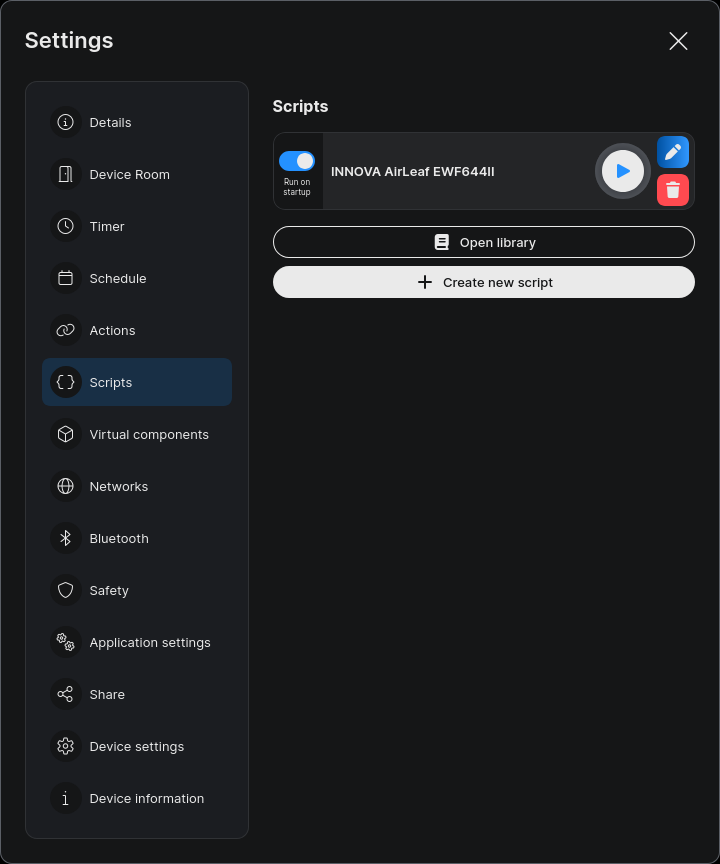
Shelly Script created for the INNOVA AirLeaf EWF644II integration.
Configure the INNOVA IP address
At the beginning of the script locate:
var CONFIG = {
host: '192.0.2.10',
pollMs: 15000,
timeoutSec: 5,
watchdogMs: 7500,
settleMs: 500,
maxQueue: 5
};
The address:
192.0.2.10
is intentionally a documentation / TEST-NET address. Replace it with the real LAN address of the AirLeaf. Example:
var CONFIG = {
host: '192.168.1.50',
pollMs: 15000,
timeoutSec: 5,
watchdogMs: 7500,
settleMs: 500,
maxQueue: 5
};
Only the host normally needs to be changed.
Configuration parameters
host
host: '192.168.1.50'
IP address of the AirLeaf Wi-Fi controller.
pollMs
pollMs: 15000
Normal physical-state polling interval. Default:
15 seconds
This is intentionally conservative because HVAC state normally does not require sub-second polling.
timeoutSec
timeoutSec: 5
Timeout passed to the Shelly HTTP request.
watchdogMs
watchdogMs: 7500
Independent script watchdog. It protects the request queue if a callback is unexpectedly not delivered.
settleMs
settleMs: 500
Delay between the end of command activity and physical state verification. This allows the AirLeaf controller a short period to process the command before Shelly reads it back.
maxQueue
maxQueue: 5
Maximum number of waiting HTTP jobs. This protects the integration from uncontrolled command accumulation.
First startup
The script first prepares the Shelly-side interface. The startup sequence is conceptually:
Start script
↓
Check Virtual API
↓
Check boolean:200
↓
Check enum:201
↓
Check number:202
↓
Check enum:203
↓
Check number:204
↓
Check text:205
↓
Create missing components
↓
Bind component handlers
↓
GET INNOVA /status
↓
Validate response
↓
Update Shelly values
↓
Start normal polling
This is intentionally different from immediately writing the current Shelly values to the HVAC unit. The integration first reads the physical device.
Existing Virtual Components
If the expected Virtual Component already exists, the current runtime reuses it and refreshes its configuration. For example:
enum:201
is reused rather than blindly duplicated. This helps preserve the fixed component mapping used by the integration.
Missing Virtual Components
If a component is missing, the script calls:
Virtual.Add
and creates it automatically. No separate Virtual Component setup script is required.
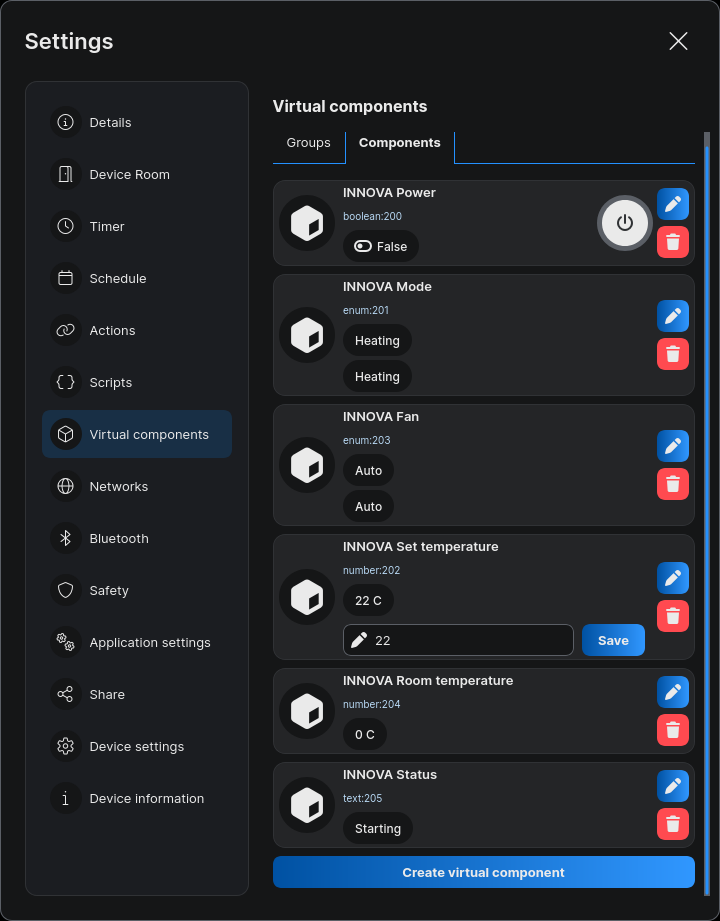
The six Virtual Components created by the script: Power, Mode, Fan, Set temperature, Room temperature, and Status.
Create the Thermostat Virtual Device
After the six Virtual Components are available, combine them into a single thermostat-style Virtual Device for the main Shelly Smart Control interface.
This step does not change the API integration or the underlying Virtual Components. It only creates a user-facing HVAC control that groups the relevant components into one thermostat interface.
1. Open Virtual Components
Open the Shelly device and go to:
Settings → Virtual components
Confirm that the following components exist:
| Component | Purpose |
| boolean:200 | INNOVA Power |
| enum:201 | INNOVA Mode |
| number:202 | INNOVA Set temperature |
| enum:203 | INNOVA Fan |
| number:204 | INNOVA Room temperature |
| text:205 | INNOVA Status |
The text:205 status component remains a separate diagnostic component and is not mapped into the thermostat template.
2. Create a Virtual Device from a template
Switch to the Groups tab and choose Create Virtual Device from Template.
Select:
Thermostat
Heating/cooling control
For a production installation, replace the default template name such as group:200 with a clear name, for example:
INNOVA AirLeaf EWF644II
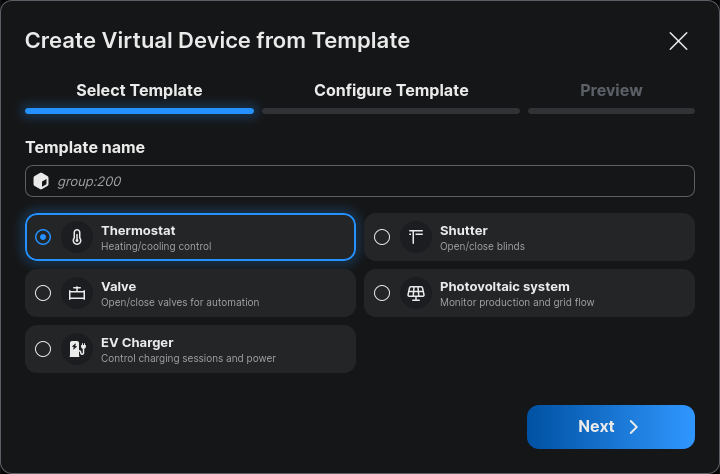
Select the Thermostat template in Shelly Smart Control.
3. Map the INNOVA Virtual Components
Configure the thermostat template with the components created by the script:
| Thermostat field | Virtual Component |
| Current temperature | INNOVA Room temperature (number:204) |
| Target temperature | INNOVA Set temperature (number:202) |
| Enable thermostat | INNOVA Power (boolean:200) |
| Current Humidity | Not configured |
| Thermostat mode | INNOVA Mode (enum:201) |
| Fan mode | INNOVA Fan (enum:203) |
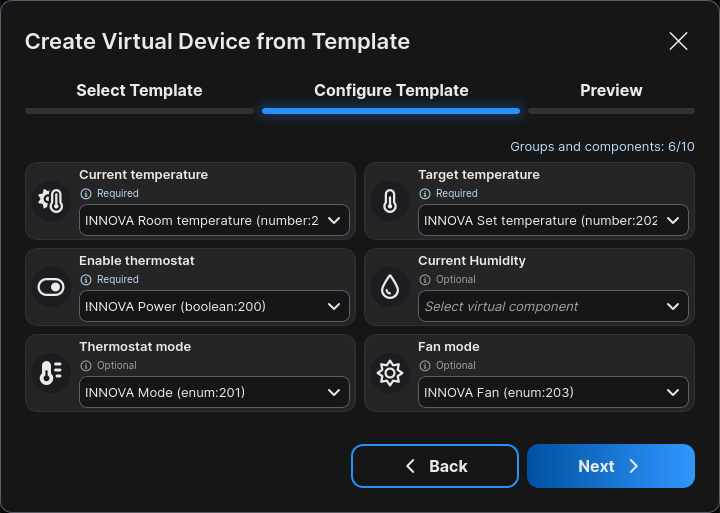
Map the INNOVA Virtual Components to the Thermostat template.
Select Next after all five required/used fields are mapped.
4. Preview the thermostat
The preview should provide a single HVAC interface with:
-
current room temperature;
-
target temperature control;
-
Heating / Cooling mode;
-
Auto / Night / Minimum / Maximum fan mode;
-
Power ON / OFF.
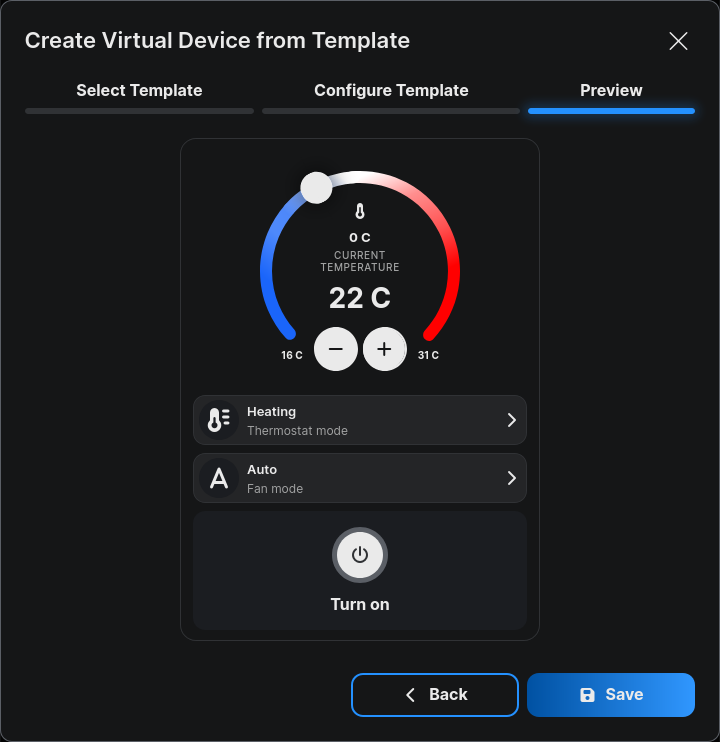
Preview of the completed INNOVA AirLeaf thermostat Virtual Device.
Select Save to create the Virtual Device.
The individual Virtual Components remain available for scenes, automations, diagnostics, and advanced logic, while the thermostat Virtual Device becomes the primary user-facing control in Shelly Smart Control.
Why the Virtual Component bootstrap is compact
An earlier version of the integration used the full generic Shelly Virtual Component helper. That approach is very flexible, but during real testing on:
Shelly Plug S Gen3
Firmware 2.0.0
the larger runtime could exhaust the available scripting memory. The device reported:
out_of_memory
The final implementation therefore keeps the same essential self-provisioning concept but replaces the generic helper with a compact fixed-component bootstrap. This significantly reduces the runtime memory footprint.
Shelly mJS compatibility
Another issue discovered during real hardware testing involved:
Array.shift()
The tested Shelly runtime reported:
Function "shift" not found
Therefore the final queue implementation deliberately uses:
A = Q[0];
Q = Q.slice(1);
instead of:
Q.shift();
This is an important example of why embedded Shelly Script code should be validated on real Shelly firmware rather than assumed to behave exactly like full browser or Node.js JavaScript.
Normal polling
When there is no command in progress, Shelly periodically sends:
GET /api/v/1/status
Default interval:
15 seconds
The result is used to update:
Power
Mode
Target temperature
Fan
Room temperature
Status
This also means that a change performed directly at the AirLeaf controller can be reflected back into Shelly Smart Control.
Bidirectional synchronization
This is one of the most important parts of the integration. The system does not treat Shelly as the only controller. The AirLeaf may also be changed from:
-
its own physical interface;
-
another supported INNOVA interface;
-
internal HVAC logic;
-
another local controller.
Therefore the physical AirLeaf remains authoritative.
INNOVA → Shelly synchronization
Example: A user changes the fan directly on the AirLeaf:
Auto → Night
The next status request returns:
fn = 2
The Shelly Script converts this to:
night
and updates:
enum:203
Shelly Smart Control then displays:
Night
Shelly → INNOVA control
If the user changes:
Fan → Maximum
Shelly generates a Virtual Component change event. The script sends:
POST /api/v/1/set/function/max
After the command sequence settles, it reads:
GET /api/v/1/status
again. The physical status is then written back into Shelly.
Preventing feedback loops
A bidirectional integration introduces a potential problem:
INNOVA changes
↓
Script updates VC
↓
VC change event
↓
Script sends INNOVA command
↓
INNOVA changes
↓
...
The runtime prevents this by checking the event source. Script-generated Virtual Component updates are ignored by the command handlers. Conceptually:
Physical update
↓
setValue()
↓
Virtual Component
↓
event source = script
↓
DO NOT send HTTP command
Only genuine user-side changes generate control requests.
Serialized HTTP communication
The integration never intentionally sends uncontrolled concurrent HTTP requests. Instead it maintains one active request at a time. Conceptually:
QUEUE
[Power]
[Mode]
[Setpoint]
[Fan]
↓
one request active
↓
response
↓
next request
This matters because embedded HVAC controllers may respond poorly to multiple overlapping HTTP requests.
Command coalescing
Rapid UI interaction can produce multiple changes. For example, while changing the temperature:
21.0
21.5
22.0
22.5
23.0
A simple implementation might send five POST requests. The current runtime can replace a pending command of the same logical type with the newest value. Conceptually:
Setpoint 21.0
Setpoint 21.5
Setpoint 22.0
Setpoint 22.5
Setpoint 23.0
becomes closer to:
active request
+
latest pending setpoint
instead of blindly replaying every intermediate user input.
Mode-change sequencing
Changing HVAC mode while the fan coil is OFF requires special handling. Suppose:
Power = OFF
Mode = Heating
If the user selects:
Cooling
the runtime can queue:
POST /power/on
↓
POST /set/mode/cooling
↓
wait
↓
GET /status
This is preferable to issuing the mode request without considering the known power state.
Dependency failure handling
There is another important protection. Suppose the sequence is:
Power ON
↓
Change mode
but the first command fails. A naive queue would still execute:
Change mode
The current implementation does not continue blindly. For a command failure:
failed prerequisite
↓
clear remaining dependent queue
↓
read physical state
This reduces the chance of executing commands under an invalid assumption about the HVAC state.
Physical state verification
After command activity, the integration does not assume that the command actually changed the physical fan coil. The sequence is:
User changes Shelly value
↓
HTTP POST
↓
INNOVA accepts request
↓
Short settle delay
↓
HTTP GET /status
↓
Read physical state
↓
Update Shelly Virtual Components
This is especially important in HVAC systems. The equipment may:
-
reject a request;
-
normalize a value;
-
remain in another state;
-
react according to internal control logic;
-
apply operating limits.
The value displayed after synchronization therefore reflects the state returned by the physical controller.
Delayed status readback
Instead of performing:
POST
GET
POST
GET
POST
GET
for every individual operation, the final runtime waits briefly after the command queue becomes idle. Default:
500 ms
Then it performs one physical status readback. Conceptually:
Power ON
Mode Cooling
Setpoint 22
Fan Auto
↓
500 ms
↓
GET status
This reduces unnecessary HTTP traffic.
HTTP response validation
A received HTTP response is not immediately trusted. The script checks several conditions.
Shelly RPC status
First:
errorCode == 0
must be true.
HTTP code
The HTTP response must be:
200
JSON validation
The body must parse successfully:
JSON.parse(result.body)
If parsing fails, the response is rejected.
API result
The response must contain:
success = true
Status object
For status requests:
RESULT
must exist.
Device validation
The response must report:
deviceType 002
Only after all these conditions pass is the physical status applied to Shelly.
Device-type protection
The check:
deviceType 002
prevents the integration from automatically interpreting the response from an unvalidated INNOVA controller as if it were the tested AirLeaf target. If the device type differs, Shelly reports a status similar to:
error: not AirLeaf 002
instead of applying unknown field semantics.
HTTP watchdog
The script also implements an independent request watchdog. Normal HTTP timeout:
5 seconds
Script watchdog:
7.5 seconds
If the expected callback is not received, the watchdog releases the active request state and reports the communication failure. This prevents the HTTP queue from remaining permanently locked.
Late callback protection
Network activity can sometimes produce an unusual situation:
-
Shelly considers a request expired.
-
The request is cleared.
-
A delayed callback arrives later.
If the old callback were accepted, it could corrupt the current queue state. The script therefore assigns a request identifier. Conceptually:
Request 41
Request 42
Request 43
Only the callback belonging to the currently active request ID is processed. An old callback is ignored.
Communication status
The INNOVA Status Virtual Component can display conditions such as:
connecting to 192.168.1.50
sending: power on
sending: mode cooling
online / type 002
or:
offline: timeout
This gives the installer immediate information without needing to inspect the script console for every condition.
Communication loss
If the AirLeaf becomes unreachable:
Shelly
X
INNOVA
the integration does not crash intentionally. Instead:
HTTP request
↓
timeout/error
↓
Status = offline
↓
queue released
↓
later polling continues
When communication is restored, a successful status response updates the Virtual Components again.
Installing the final script
The recommended deployment process is:
1. Verify the AirLeaf
Open:
http://INNOVA_IP/api/v/1/status
Confirm:
deviceType 002
2. Open the Shelly device
Go to:
Scripts
3. Create a new script
Suggested name:
INNOVA AirLeaf EWF644II
4. Paste the production runtime
Use:
upstream/innova-airleaf-ewf644ii_vc.shelly.js
from:
drHouse-gif/drHouse-gif-innova-airleaf-shelly
5. Configure the IP
Change:
host: '192.0.2.10'
to the AirLeaf address.
6. Save
Press:
Save
7. Start the script
Press:
Run
8. Check the script console
A successful start should include a message similar to:
[INNOVA] Controller started for 192.168.1.50
9. Open Shelly Smart Control
The six Virtual Components should become available.
10. Enable Run on startup
After confirming stable operation:
Run on startup → ON
11. Create the thermostat Virtual Device
Use the Thermostat template and map number:204, number:202, boolean:200, enum:201, and enum:203 as described in Create the Thermostat Virtual Device above.
Recommended first test
Do not start by changing every setting at once. First confirm read-only synchronization. Check:
Room temperature
Power
Mode
Setpoint
Fan
Status
Compare those values with the physical AirLeaf interface.
Power test
Change:
Power OFF
Verify physically that the fan coil turns off. Then check that the following status read reports:
ps != 1
Now change:
Power ON
and verify:
ps = 1
Mode test
With the fan coil enabled, change:
Heating
Verify:
wm = 3
Then select:
Cooling
and verify:
wm = 5
Temperature test
Set:
22.5 °C
The outgoing payload should logically correspond to:
{
"temp": 225
}
Then verify:
sp = 225
in the physical status response.
Fan test
Test each option individually:
Auto
Night
Minimum
Maximum
Expected physical values:
Auto → fn = 1
Night → fn = 2
Minimum → fn = 3
Maximum → fn = 4
Shelly Smart Control presentation
Once synchronized and grouped with the Thermostat template, the fan coil can be represented with:
Current temperature 21.0 °C
Target temperature 22.5 °C
Mode Heating
Fan Auto
Power ON
Status Online
The same components can also be used for:
-
dashboards;
-
scenes;
-
schedules;
-
automations;
-
monitoring;
-
additional Shelly logic.
Shelly Smart Control is designed to control Shelly components locally or remotely and supports scenes and automation logic around device values. (Shelly Knowledge Base)
Example automation possibilities
Once the AirLeaf exists as Shelly components, the fan coil can participate in higher-level HVAC logic. For example:
Window opens
↓
Power OFF
or:
Room temperature > target
↓
Cooling
or:
Night schedule
↓
Fan = Night
or:
Building unoccupied
↓
Power OFF
The exact automation design should depend on the building and HVAC operating requirements.
Multiple AirLeaf units
The production script described here follows a simple architecture:
1 Shelly runtime
|
1 AirLeaf controller
For multiple fan coils, one approach is to run an individual integration instance for each controller, depending on available Shelly resources. A separate multi-target implementation can also use a selector such as:
Living Room
Bedroom
Office
but that introduces additional synchronization complexity. The single-controller integration is intentionally easier to validate and maintain.
Troubleshooting
Script does not start
Check the script console. Look for:
Virtual API unavailable
or:
Virtual Component setup failed
Verify that the Shelly firmware supports Dynamic Virtual Components.
out_of_memory
If the script reports:
out_of_memory
check whether additional scripts are running on the Shelly. Shelly scripting memory is constrained, particularly on smaller Gen3 devices. During development, a larger generic-helper implementation caused memory exhaustion on the tested Plug S Gen3. The current production runtime was specifically reduced to address this issue. Also check whether another script such as a BLE gateway or proxy is consuming script resources.
Function “shift” not found
Do not use an older version of the integration that contains:
Q.shift();
The tested firmware did not expose this function. The current runtime uses:
A = Q[0];
Q = Q.slice(1);
Status shows timeout
Example:
offline: timeout
Test the AirLeaf directly:
curl -m 5 http://INNOVA_IP/api/v/1/status
Check:
-
AirLeaf power;
-
Wi-Fi connection;
-
IP address;
-
routing;
-
VLAN/firewall rules;
-
network isolation;
-
HTTP availability.
Shelly can reach the network but not the AirLeaf
Verify that Wi-Fi client isolation is not enabled. Some access points prevent wireless clients from communicating directly with each other. The integration requires:
Shelly → INNOVA
direct local connectivity.
Wrong device type
If the status displays:
error: not AirLeaf 002
inspect the API response. Do not simply remove the protection. A different deviceType may use:
-
different fields;
-
different values;
-
different endpoints;
-
different semantics.
Validate the controller first.
Invalid JSON
If the status indicates:
invalid JSON
inspect:
http://INNOVA_IP/api/v/1/status
with:
curl -v
The controller may be:
-
returning an error page;
-
redirecting;
-
returning incomplete data;
-
temporarily unavailable.
Reading works but commands do not
If:
GET /status
works but POST commands fail, test the API manually. For example:
curl -X POST \
-H 'Content-Type: application/json' \
-d '{}' \
http://INNOVA_IP/api/v/1/power/on
Then verify the physical state with:
curl http://INNOVA_IP/api/v/1/status
Shelly value changes and then returns back
This can actually be expected behavior. Example:
User selects 23 °C
↓
Shelly sends 230
↓
INNOVA reports 22 °C
↓
Shelly returns to 22 °C
The integration intentionally trusts the physical state returned by the AirLeaf. This prevents Shelly from displaying a command that was not actually accepted.
Heating or cooling does not change
Check:
-
whether the unit is powered;
-
the current AirLeaf state;
-
whether the controller permits the requested mode;
-
whether the API returned success: true;
-
the value of wm after the command.
The script powers the unit before a mode change when required based on the last known state.
Wrong temperature
The AirLeaf temperature fields use:
× 0.1 °C
For example:
214 → 21.4 °C
Do not display:
214 °C
directly.
Fan mode appears incorrect
Check the raw:
fn
field. Validated mapping:
1 Auto
2 Night
3 Minimum
4 Maximum
Do not add mappings for additional values until they have been confirmed on real hardware.
Yellow Shelly enum warnings
If Shelly Smart Control displays warnings such as missing titles for:
heating
auto
the Virtual Components are using older metadata. The current runtime includes explicit mappings. Mode:
titles: {
heating: 'Heating',
cooling: 'Cooling'
}
Fan:
titles: {
auto: 'Auto',
night: 'Night',
min: 'Minimum',
max: 'Maximum'
}
Restarting the current script refreshes the configuration of existing Virtual Components.
Debugging from Linux
Check the AirLeaf:
curl -s http://INNOVA_IP/api/v/1/status
Check the Shelly script status:
curl -s http://SHELLY_IP/rpc/Script.GetStatus?id=SCRIPT_ID
Useful information includes:
running
mem_used
mem_peak
mem_free
errors
Testing the API manually
Status
curl -s \
http://INNOVA_IP/api/v/1/status
Power ON
curl -s \
-X POST \
-H 'Content-Type: application/json' \
-d '{}' \
http://INNOVA_IP/api/v/1/power/on
Power OFF
curl -s \
-X POST \
-H 'Content-Type: application/json' \
-d '{}' \
http://INNOVA_IP/api/v/1/power/off
Heating
curl -s \
-X POST \
-H 'Content-Type: application/json' \
-d '{}' \
http://INNOVA_IP/api/v/1/set/mode/heating
Cooling
curl -s \
-X POST \
-H 'Content-Type: application/json' \
-d '{}' \
http://INNOVA_IP/api/v/1/set/mode/cooling
Setpoint 22 °C
curl -s \
-X POST \
-H 'Content-Type: application/json' \
-d '{"temp":220}' \
http://INNOVA_IP/api/v/1/set/setpoint
Auto fan
curl -s \
-X POST \
-H 'Content-Type: application/json' \
-d '{}' \
http://INNOVA_IP/api/v/1/set/function/auto
Recommended validation matrix
Before describing another installation as fully validated, test all of the following:
| Test | Expected result |
| Initial status | Values synchronized |
| Power ON | Physical AirLeaf turns ON |
| Power OFF | Physical AirLeaf turns OFF |
| Heating | wm = 3 |
| Cooling | wm = 5 |
| 16 °C setpoint | sp = 160 |
| 22.5 °C setpoint | sp = 225 |
| 31 °C setpoint | sp = 310 |
| Fan Auto | fn = 1 |
| Fan Night | fn = 2 |
| Fan Min | fn = 3 |
| Fan Max | fn = 4 |
| Physical controller change | Shelly updates |
| Network disconnect | Status becomes offline |
| Network reconnect | Shelly synchronizes again |
| Shelly reboot | Script starts correctly |
| Existing VCs | Reused |
| Missing VCs | Created |
| Rapid setpoint changes | Queue remains stable |
| Invalid API response | Script remains running |
Network security
The tested INNOVA interface uses local plain HTTP. That means communication is not encrypted at the HTTP layer. For this reason:
-
keep the AirLeaf on a trusted LAN;
-
avoid exposing TCP port 80 directly to the Internet;
-
use proper firewalling between network zones;
-
use VPN access for remote administration where required;
-
do not port-forward the AirLeaf HTTP interface publicly.
HVAC safety
This integration communicates with the existing INNOVA control system. It does not replace the equipment’s built-in control logic. Do not attempt to use the Shelly script to bypass:
-
thermal protection;
-
fan-coil protection;
-
manufacturer limits;
-
electrical protection;
-
installer configuration;
-
water-system protection;
-
HVAC operating constraints.
The integration should be considered an external control interface, not a replacement for the manufacturer’s safety systems.
Limitations
The current implementation is intentionally limited to the behavior that has been validated. It currently supports:
Power
Heating
Cooling
Setpoint
Fan Auto
Fan Night
Fan Minimum
Fan Maximum
Room temperature
Status
It does not automatically assume support for:
-
additional AirLeaf modes;
-
scheduling;
-
calendar control;
-
water temperature;
-
alarms;
-
valve position;
-
fan RPM;
-
humidity;
-
occupancy;
-
other deviceType values.
Additional API functions can be added after they are verified on the target controller.
Why unknown fields are intentionally ignored
Reverse-engineered or locally exposed HVAC APIs often contain additional fields. It is tempting to immediately expose everything. For a production integration this is not ideal. The safer approach is:
Observe
↓
Identify
↓
Validate
↓
Test write behavior
↓
Document
↓
Expose
rather than guessing field meaning from isolated values.
Future extensions
The same architecture could later be extended with:
-
water-temperature telemetry;
-
operating-demand status;
-
alarms;
-
filter status;
-
advanced fan states;
-
scheduling;
-
multi-AirLeaf target selection;
-
additional AirLeaf controller types after validation.
The existing architecture already separates:
API transport
state decoder
command queue
Shelly Virtual Components
which makes controlled extension possible.
Final result
The INNOVA AirLeaf EWF644II is now integrated directly into the Shelly ecosystem through its local HTTP API. Its main operating values and controls are exposed as Shelly Virtual Components and can be used directly from Shelly Smart Control. The solution provides local control of:
-
fan-coil power;
-
heating and cooling modes;
-
target temperature;
-
Auto, Night, Minimum and Maximum fan functions;
-
current room temperature;
-
connection and command status.
The final architecture remains simple:
INNOVA AirLeaf EWF644II
|
Local HTTP API
|
Shelly Gen3
|
Shelly Script
|
Virtual Components
|
Shelly Smart Control
The AirLeaf remains the physical source of truth: Shelly sends commands, reads the controller again, and updates its Virtual Components according to the state reported by the HVAC equipment. This approach makes it possible to bring a compatible INNOVA AirLeaf fan-coil controller directly into the Shelly ecosystem while keeping the actual control path local, lightweight and suitable for residential and building-automation applications.


