-
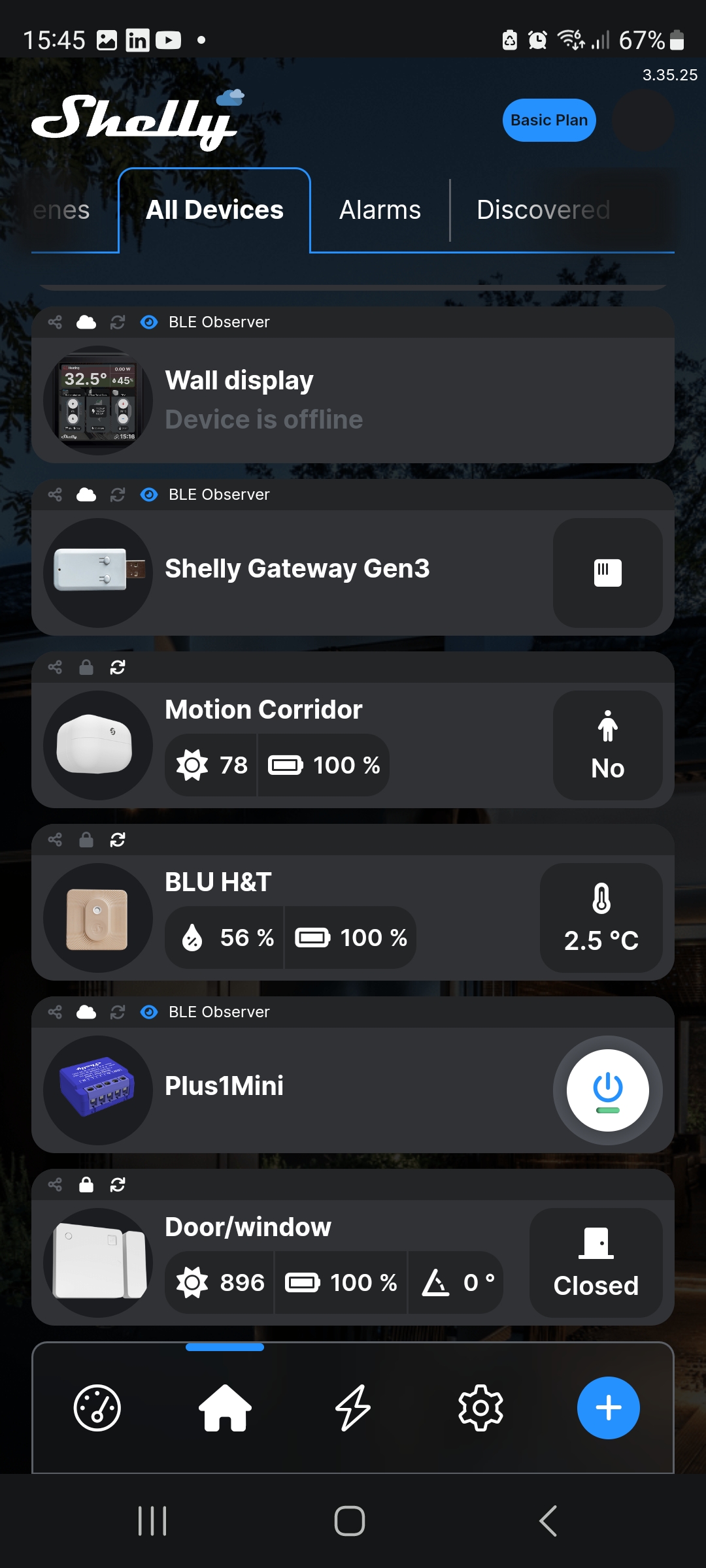
The distance between the Gateway and your router should be less than 30 m.
-
The Gateway requires at least 500 mA to operate.
-
The Gateway works only with 2.4 GHz Wi-Fi networks.
Prerequisites
Before you start, make sure you have:
-
Shelly Smart Control app is installed on your mobile device.
-
An active account in the Shelly cloud.
-
Bluetooth connectivity enabled on your mobile device.
Installation
-
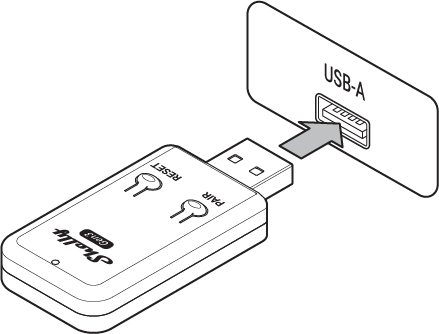
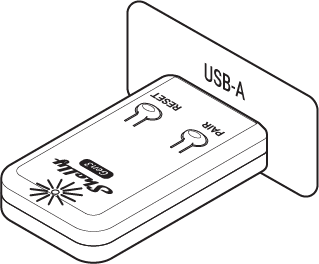
Power up the Gateway by plugging it into a standard USB type A port. The LED indicator lights up in blue showing that the device is in Access Point mode.
-
Open the Shelly Smart Control app on your mobile device.
-
Select
at the lower-right corner of the screen.
-
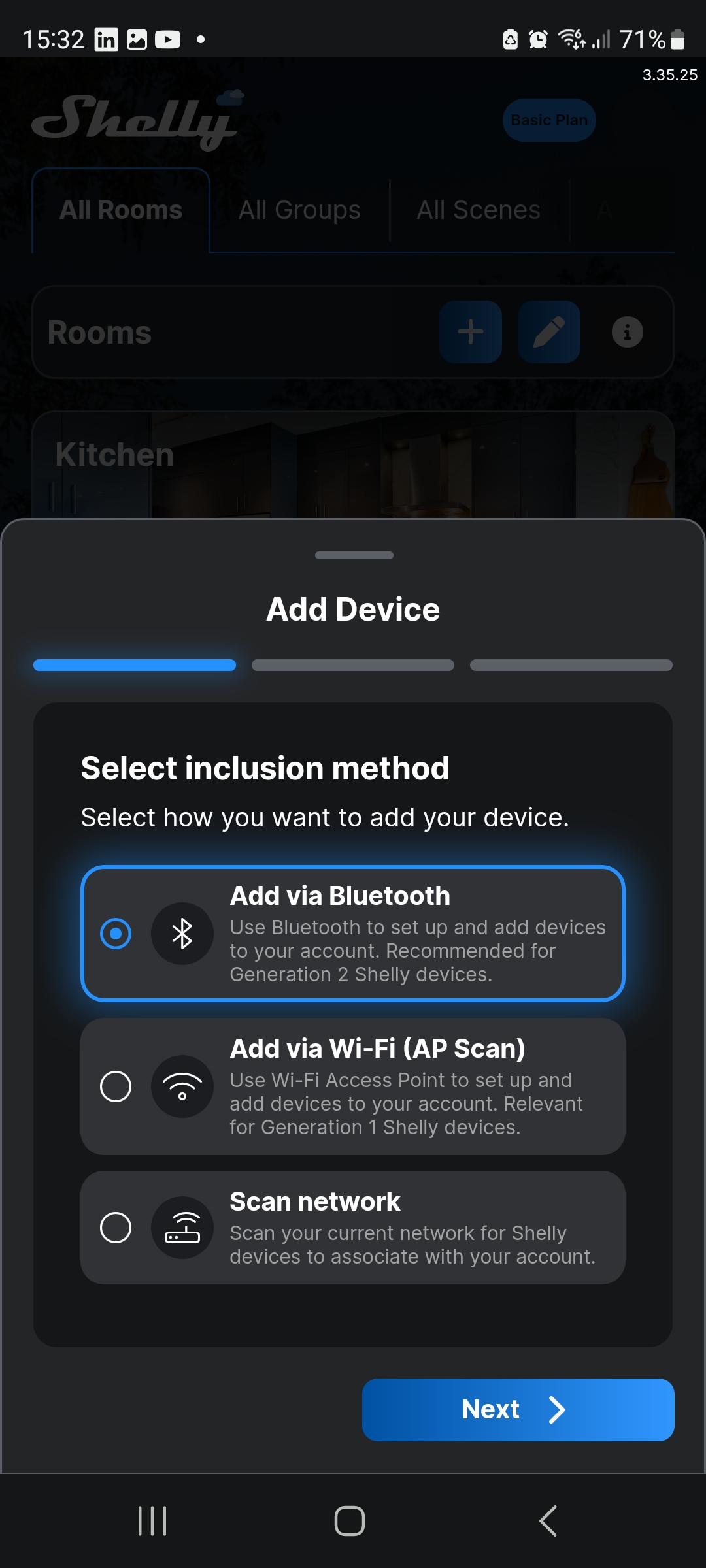
Select Add via Bluetooth, then select Next.
-
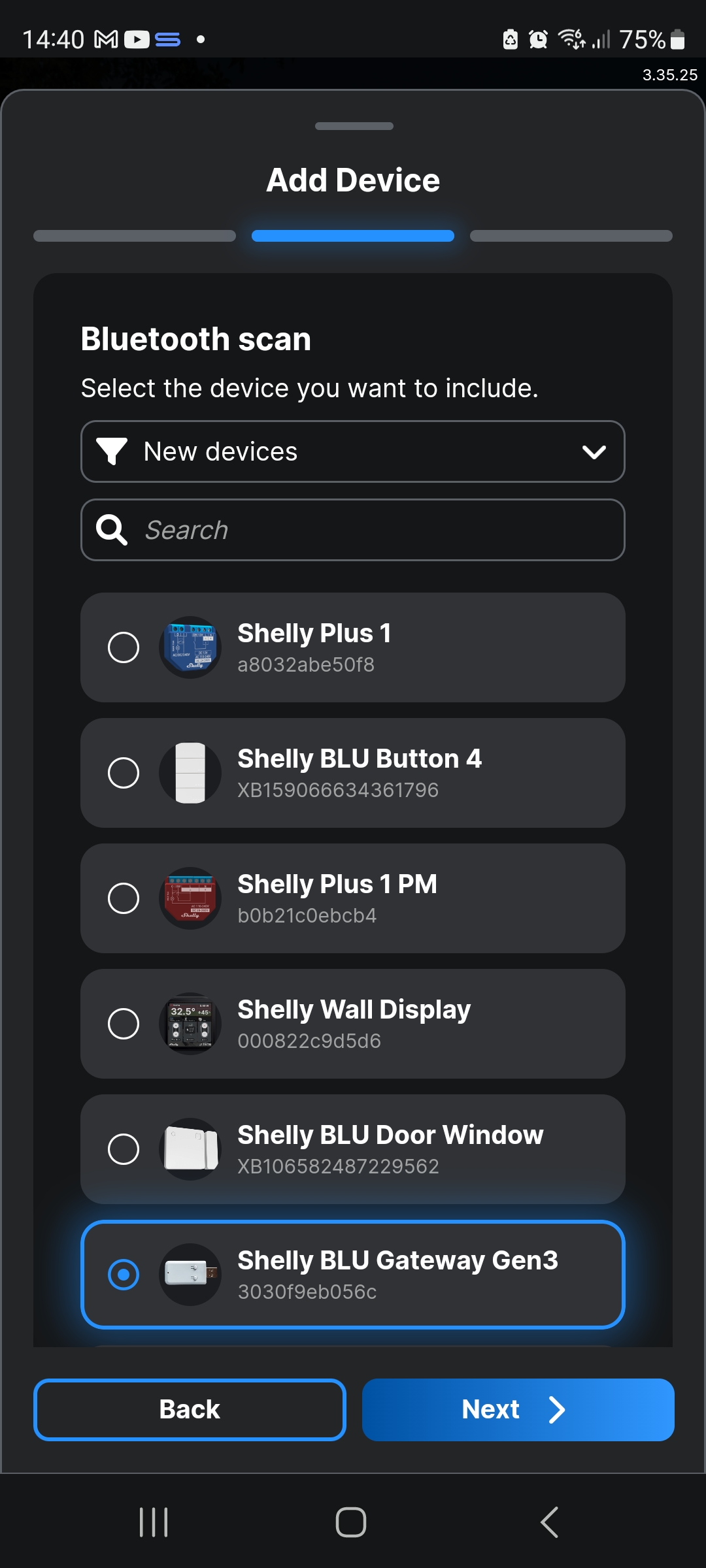
Select Shelly Bluetooth Gateway Gen3, then select Next.
-
Select the Wi-Fi network for connecting the Gateway, then select + Add device.
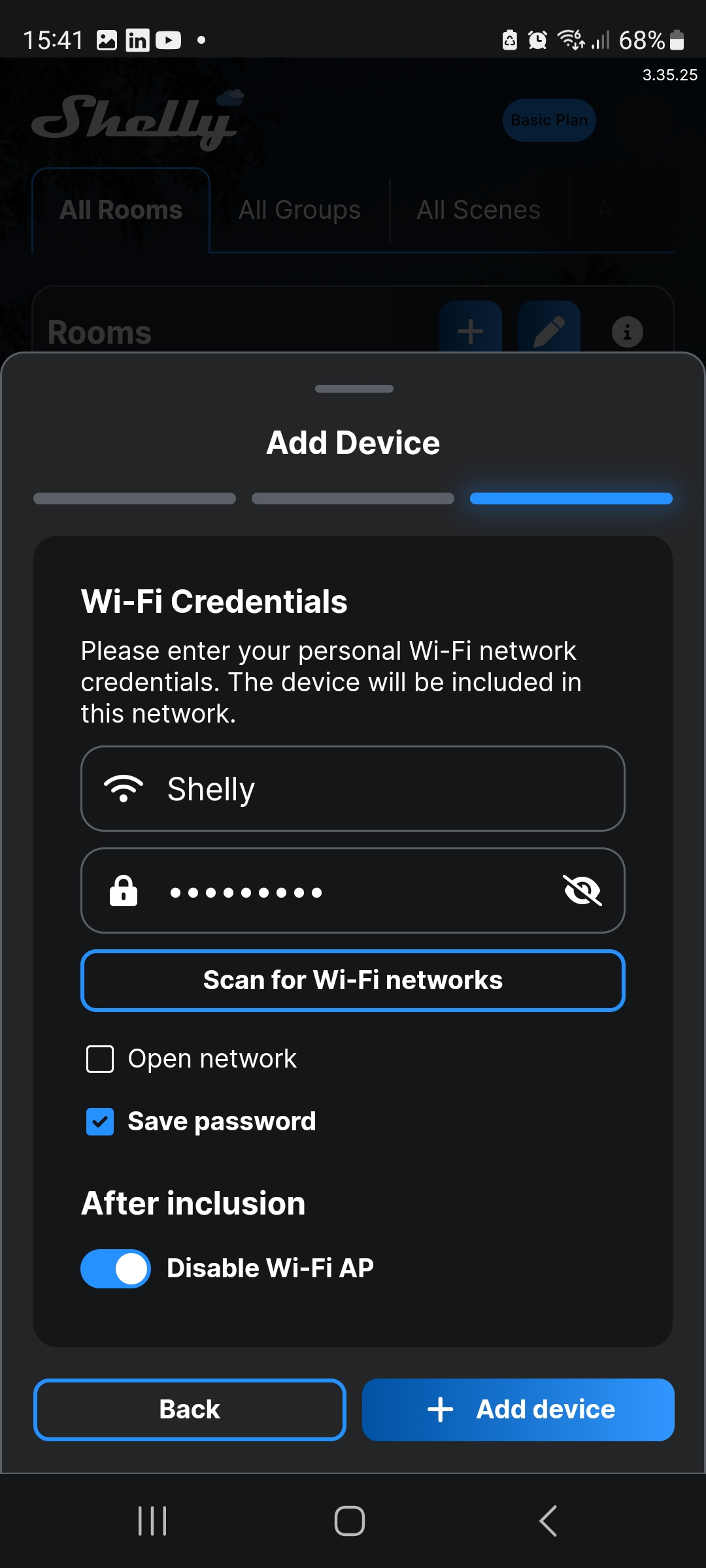
The LED indicator lights up in red showing that the device is connecting to the Shelly cloud.
If you have previously added devices and saved the network password, a message will appear asking you to confirm if you want to connect the new device to the same Wi-Fi network. If you want to change the network, select Edit .
-
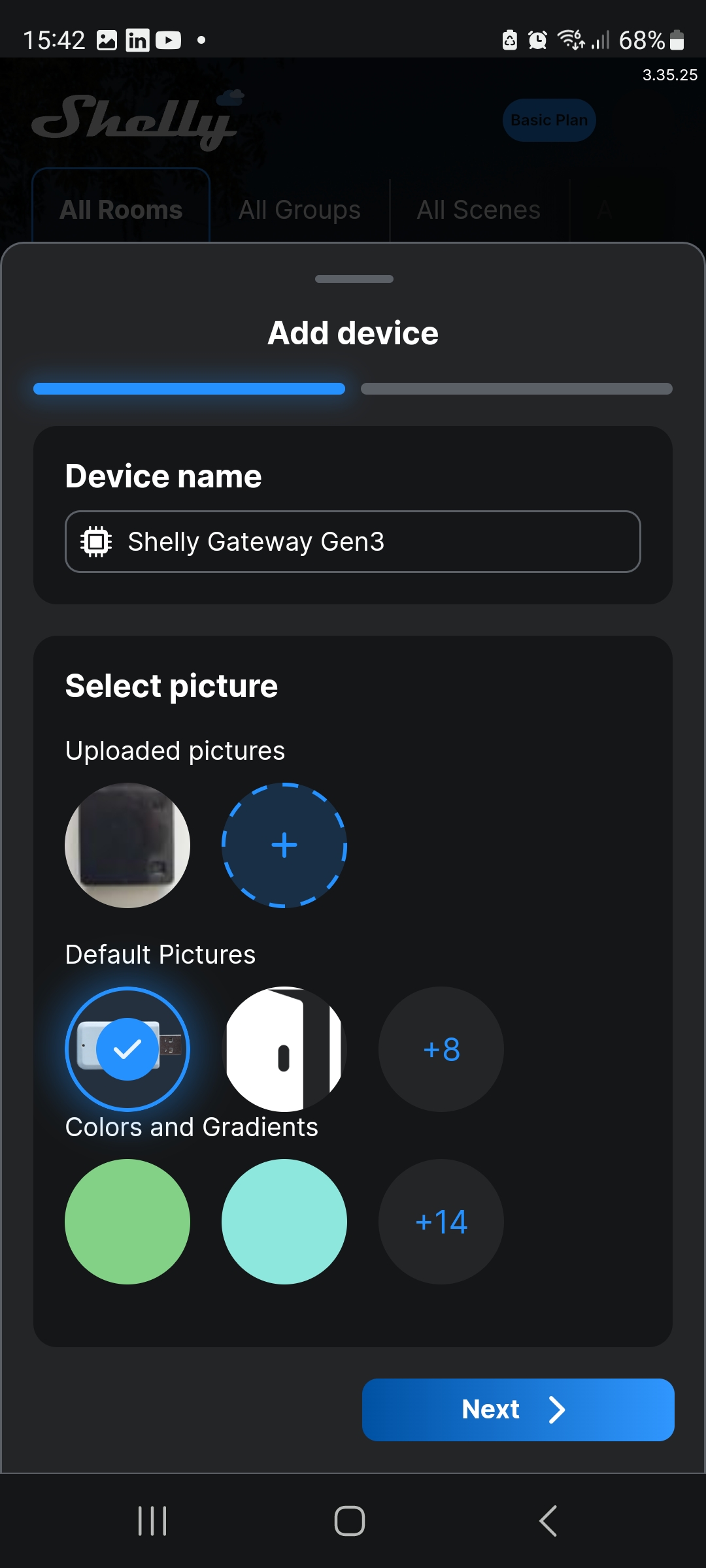
Name the Device and select a picture. Then, select Next.
-
Add the Gateway to a room of your preference. Alternatively, create a new room and then select Save.
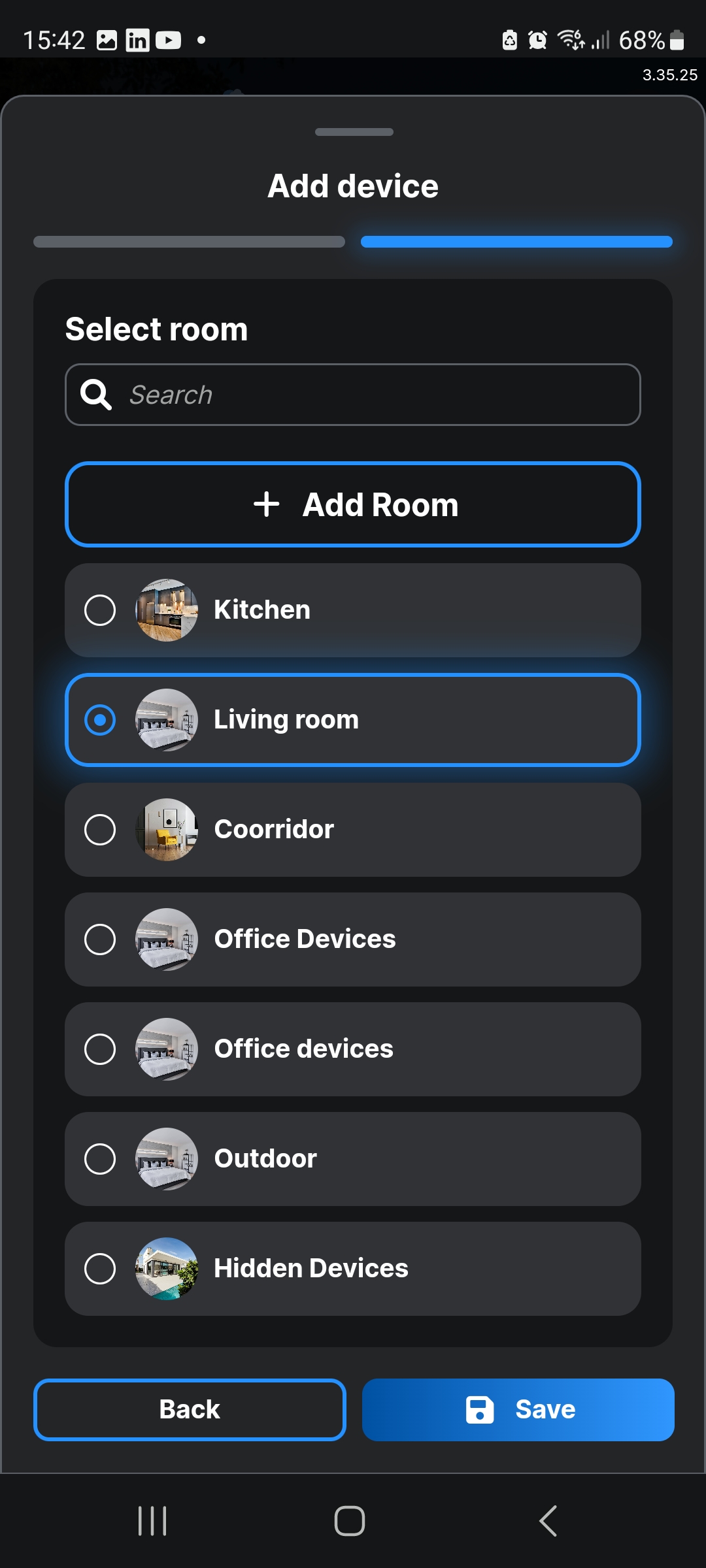
The Device is now added to your account.